
With UdyogX, you can easily manage and update customer settings.
Stepwise Instructions #
Log in to the software entering your username and password.
-
Login to your account using your credentials.
-
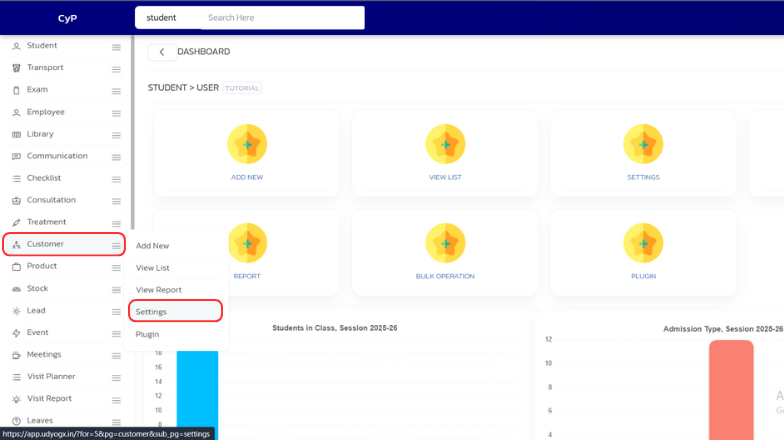
On the left sidebar, hover on “Customer”. A submenu will appear, click on “Settings”.
-
The “Settings” page will open. Update the settings as needed and click “Save” to apply the changes.
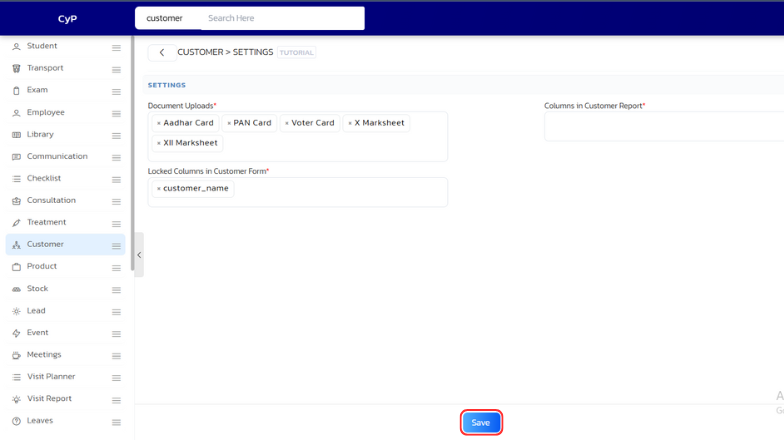
| S.No | Setting Name | Description |
|---|---|---|
| 1 | Customer Types* | At the time of customer entry, customer type category will appear, enter its name here, write regular customer, new customer, old customer. |
| 2 | Document Uploads* | Write here the names of the documents that should be entered at the time of customer entry. |
| 3 | Columns in Customer Report* | What columns should be included in the customer report so that the report comes out correctly? |
| 4 | CUSTOMER COMMUNICATION SETTINGS | |
| 5 | Send Welcome SMS to Customers Automatically* | On entry of any new customer, he will automatically be sent a welcome message from the company, his entry will be |
| 6 | SMS Template ID* | ID will have to be entered in the template that Sons will send |
| 7 | Customer Welcome SMS Template* | Upon entry of any new customer, an automatic welcome message will be sent from the company. |


