
With UdyogX, you can easily upload documents or data related to income and expense records.
Stepwise Instructions #
- Login to your account using your credentials.
- On the left sidebar, hover on “Cashflow”.
- If you want to upload for income, hover on “Income”. A submenu will appear, click on “View List”.
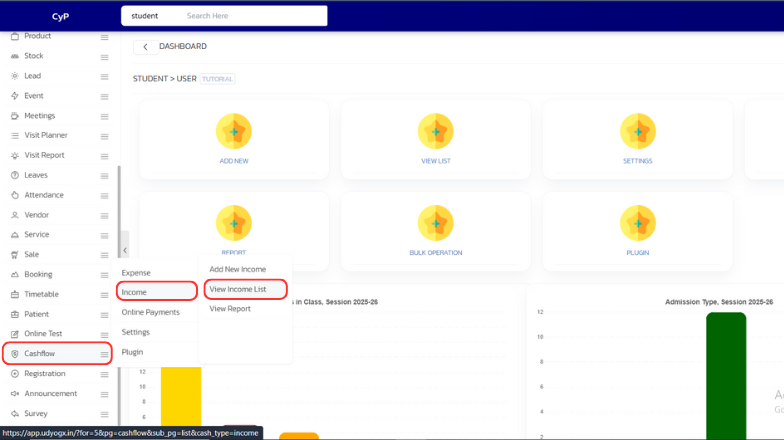
- If you want to upload for expense, do the same under “Expense”.
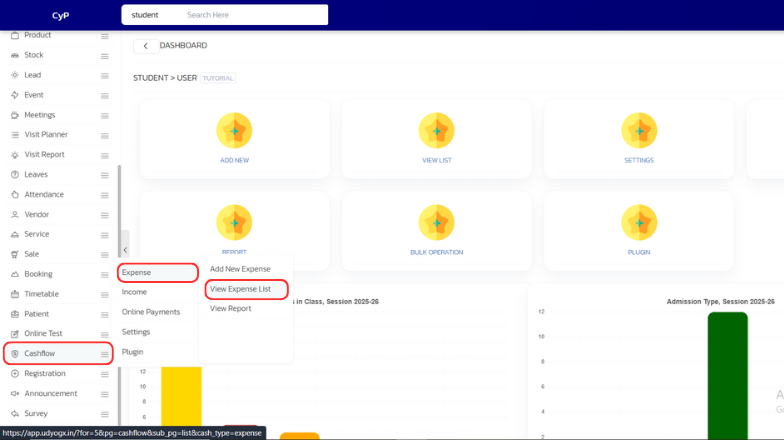
- If you want to upload for income, hover on “Income”. A submenu will appear, click on “View List”.
- A list will appear. Whosever data you want to upload, hover on the arrow icon on the right side.
- If you selected income, there will be an option “Income”. Hover on it, another submenu will appear, click on “Upload”.
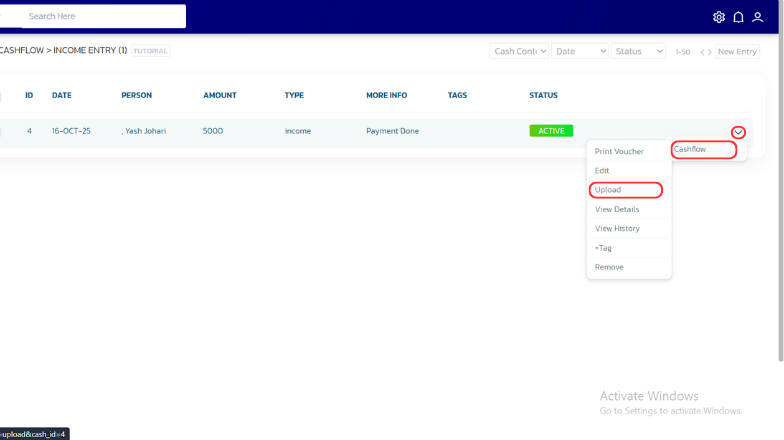
- For expense, follow the same steps under “Expense”.
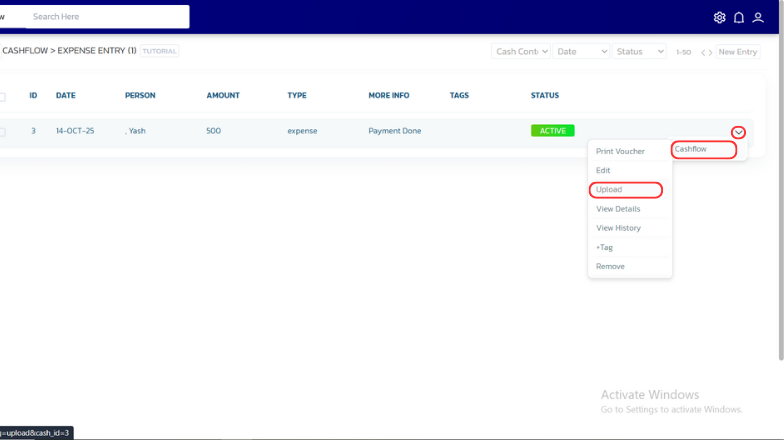
- If you selected income, there will be an option “Income”. Hover on it, another submenu will appear, click on “Upload”.


