
Stepwise Instructions #
Follow these steps to Update Consultation
- First, log in to the UdyogX Portal using your registered credentials.
- After logging in, the Dashboard page will open.
- On the left side of the dashboard, you will see a list of all available modules the From the list of module, go to the Consultation module.
- Move your cursor over the Consultation module, and a sub-menu will appear.
- In the sub-menu, click on “View List.
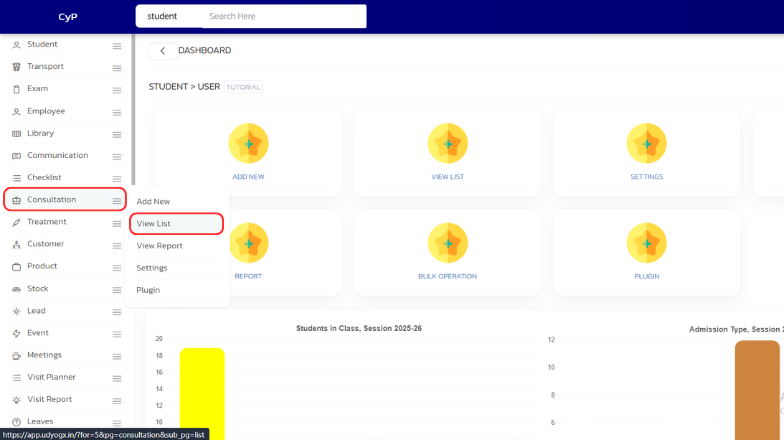
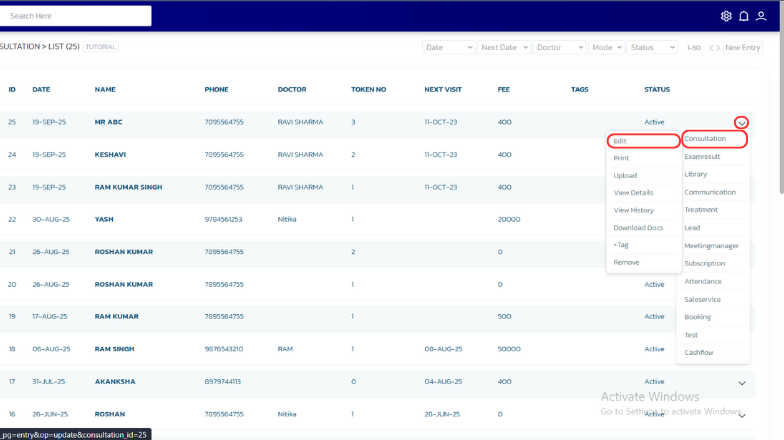
- You will now be redirected to the View List page, where all patients who have consulted the doctor are displayed.
- From the list, locate the patient whose consultation entry you want to update.
- On the right side of that patient’s entry, you will find a dropdown menu.
- Move your mouse cursor over the dropdown; you will see a “Consultation” option.
- Hover your cursor over “Consultation”, and the “Edit” option will appear the Click on the “Edit” option.
- The Consultation Entry page will open, displaying the patient’s details.
- Make the necessary updates or changes to the patient’s consultation information.
- Once you have made all required updates, click on the “Save” button to save the changes.
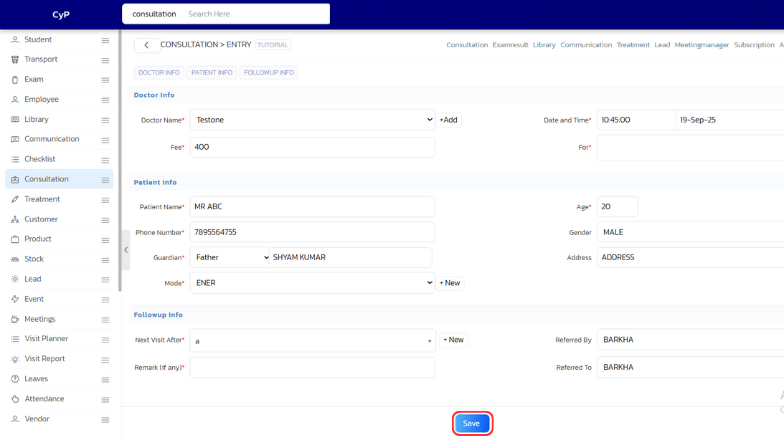
- The updated consultation details will now be successfully saved in the system.


